Web UI
The start page
Open notefeed in a browser. The start page asks for a feed name and suggests a random one, such as quiet-otter-x7k2p4m9qd8zr; the shuffle button next to it suggests another. Type a name (uppercase letters are lowered and spaces become -) and press Open to go to /<name>. Below it, Your feeds lists the feeds this browser has opened (see Your feeds). The instance keeps no list of feeds: you only reach a feed by knowing its name.
Pick a hard-to-guess name
Anyone who knows a feed's name can read it, post to it, edit and delete its notes, and delete the feed. Keep the suggested name or make up something as random.
Your feeds
The feeds you open are remembered in your browser, newest first, with their title and title image: in the left column on a wide screen, and behind the feed's name at the top of a phone's screen, which opens them as a list. Forget on this device (the × next to a feed) takes one off. The list lives in the browser's local storage and is never sent to the server; another browser or device has its own, and clearing the site's data clears it. The read-only view never adds to it. Without JavaScript there is no list, and the name field still opens any feed.
A feed page
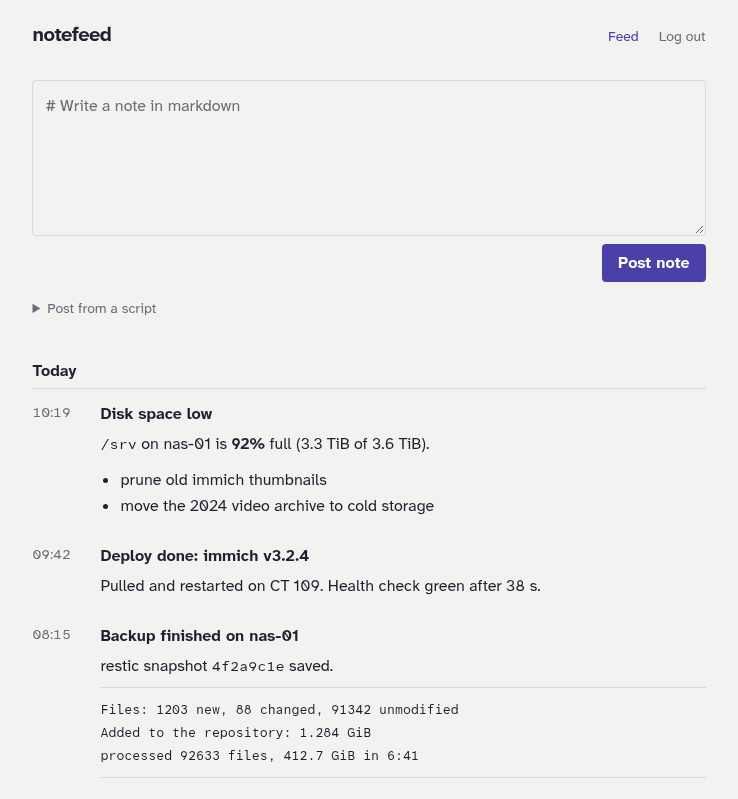
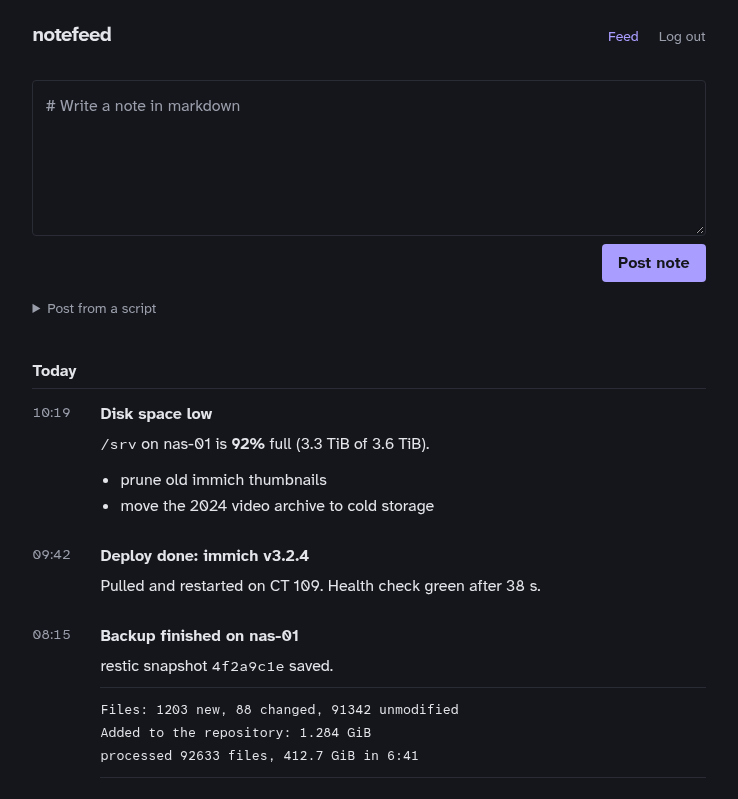
/<feed> shows one feed: a box to write a note, and its newest 50 notes, as cards grouped by day. The feed's details (its title image, title, description and name, the buttons to share it, its RSS feed, the read-only view and its settings, and its tags) are a card at the top of the page, and the right column on a wide screen, with the read link under them. A feed with no notes yet shows an empty list and a curl command to post the first one; it's saved to disk with its first note, and its read link appears then too.
Writing a note
Type markdown into the box at the top. The note is saved under an id of the time plus a random UUID, never its title: see Ids and filenames.
Post with Post, or press Ctrl+Enter (Cmd+Enter on a Mac). The note appears at the top of the list, briefly highlighted. The box posts to the same POST /<feed> as scripts, so it counts toward the same rate limit and caps. The web UI needs JavaScript for posting, editing and deleting notes; use the API or the notefeed command without it.
On a phone the box waits as a bar at the bottom of the screen, like a chat: type into it and press the send button to post. + opens the whole box as a sheet, with what you typed in it, for a title, tags, pictures and the preview. If a post is refused, the sheet opens to say why.
The settings button (the cog in the feed's details) opens the feed's settings page, which also has a ready-to-copy curl command for this feed. A feed without notes shows the command right under the box.
Preview
The eye button in the box's toolbar shows the text rendered the way the feed will show the note, with the same renderer, so what you see is what is posted: headings, lists, tables, links, and the pictures you added, shown from the files waiting in the box before anything is uploaded. Raw HTML stays text, as in a note. The pencil button, in the same place, goes back to the text. The title and the tags are their own fields and are not part of the preview. The note editor has the same button. Without JavaScript there is only the box.
Adding an image
The box's toolbar has an Add image button (the picture icon). Choose PNG, JPEG, GIF or WebP files, or paste an image into the box, or drop files on it. Each one waits in the box, with a small preview and a remove button, and  goes into the text at the cursor, with the file's own name. Nothing is uploaded yet, so leaving the page uploads nothing. When you post, the text and the pictures are sent in one request, and the server swaps the names in your text for the new notes' files. If the text holds only the pictures, no text note is made (the request has no text part), and each picture gets the alt text its reference carries (; the first non-empty one when a picture is referred to twice; a note with text keeps its alt texts in the text). If something is refused (not an image, too large, too many requests), the page says why and keeps your text and your pictures; nothing is half-posted, so posting again never makes a picture twice. The note editor sends its text and pictures the same way, as one PUT (it saves a changed title first, so a retry never duplicates pictures), and a feed that does not exist yet takes pictures too: the first post creates it, with its password.
This needs JavaScript. Without it the box is a plain text box: post a picture with the API or notefeed post --file, then write  yourself. Pictures are posted as they are, so a photo keeps its EXIF data, including where it was taken, and anyone with the read link can download it: remove it with a tool such as exiftool first (see storage).
A Title field sits above the text: leave it empty and the note is titled by its text. The editor has it too, and for a picture also an alternative text for screen readers.
Images in notes load lazily and are never wider than the note. They are as public as the read link: see Images.
The read link
Once the feed has a note, the feed's details have a Share button, which hands the read link to your device's share sheet (or copies it where there is none), and buttons for the RSS feed and the read-only view. On a wide screen the read link itself is under the details, with a copy button; the settings page has it too, under Sharing. Give it to feed readers and to people who should see the notes but not post. See Read links.
An instance can show a Report link on every note, on the feed page and in the read-only view: it leads to the operator's form or mailbox with the note's ids filled in, so a reader can say which note should not be there. notefeed stores nothing of the report. See A report link on every note.
Reading notes
Notes are listed newest first, grouped by day, each as a card: its title, its text, and a line at the bottom with its tags, who posted it (when the feed shows that), the time and the Report link. Times use the server's time zone (see TZ). Click a title to open the note on its own page, /<feed>/<id>.
Raw HTML in notes is shown as text, never run.
Tags
A note's tags show at the bottom of its card and on its page, in the feed and in the read-only view. Each is a link: it opens the list with only the notes carrying that tag (?tag=ci), with a Show all notes link above it. The feed's details list the tags of the notes on the page, to filter by one with a click. The box has an optional tags field under the text: type them separated by commas (ci, deploy). The browser refuses more than 10, or characters tags can't have, before it sends anything.
Editing and deleting a note
A note's own page, /<feed>/<id>, has its actions in a bar: at the bottom of a phone's screen, so they stay in reach on a long note, and in the right column on a wide screen. Edit opens a box with the note's markdown and a Title field; change them and press Save. For a picture there is no text, only the title and an alternative text. The note keeps its address, its place in the list and its RSS item identity, and its title follows the new text. Copy link copies the note's address. Delete asks you to confirm before it removes the note; once confirmed it is gone for good, and you land back on the feed, which stays even if it now has no notes. All notes, above the note, leads back to the list.
Editing and deleting go through the API (PUT, PATCH and DELETE), so they need JavaScript. If a change is refused (an empty note, one over the size limit, too many requests), the page says why and the note stays as it was. They count toward the same rate limit as posting.
Anyone who can open the feed can edit and delete its notes. On a feed with its own password that means anyone who has unlocked it. The read-only view has neither control.
About and legal pages
The links to the documentation, the source code and the operator's imprint, privacy and terms pages are in the footer of the start page and the other plain pages, and on a feed's pages behind About & legal (the ⓘ button): at the foot of the left column on a wide screen, at the top right on a phone.
On notefeed.me
The footer also links the license page, where a license for a feed is bought and its subscription managed. See Free tier and licenses.
With an instance password
If the instance has a password (NOTEFEED_PASSWORD), every page except the login page, the read-only views and the privacy (/privacy) and imprint (/imprint) pages asks for it first. After logging in you land on the page you were trying to open. The login lasts a year on that browser. Log out ends it in that browser: at the foot of the left column on a wide screen, and in the ⓘ menu on a phone. To log out every browser, change NOTEFEED_PASSWORD and restart notefeed; scripts use the same password, so update them too.
Wrong passwords count toward the rate limit: after too many, the login page asks you to wait up to a minute.
Install it, share to it, share a link
notefeed ships a web manifest and icons, so a browser can install it as an app (Install in Chrome and Edge, Add to Home Screen on a phone). Pages also carry a share image and description, so a link pasted into WhatsApp, Slack or similar shows a preview with the notefeed wordmark. The image URL in that preview is absolute: set PUBLIC_URL on a public instance, or it follows the Host header of the request (see Configuration). On a locked instance the icons, manifest, share image, privacy page and imprint stay public, but the pages themselves ask for a login, so a preview of a feed link shows only the image and the generic description.
Sharing to notefeed from another app
On Android, a notefeed installed from Chrome is in the system share sheet. Share a text or a link to it and notefeed asks which of your feeds it goes to (or a feed name), then opens that feed's box with what you shared in it, ready to post. Pictures and files can't be shared to it yet. iPhones don't offer installed web apps in the share sheet; there, copy the text into the box, or post with the API.